
How to use echoRnr on iPhone
Short, step-by-step guides with screenshots for iPhone. Android guides are coming soon. Pick a topic below.
- Back up your runsSave everything to a zip file you keep.
- Turn on Auto backupKeep a backup updated after every activity.
- Restore a backupBring your runs, photos and gear back.
- Move to a new iPhoneBack up on the old one, restore on the new one.
- Import runs from HealthPull in past runs from Apple Health.
- Delete your accountRemove your cloud account and shared data.
Back up your runs
echoRnr keeps your runs, walks and rides on your phone. A backup saves them to a single zip file that you keep — in iCloud Drive or a folder in the Files app. We never see it unless you send it to us.
Swipe to see each step →
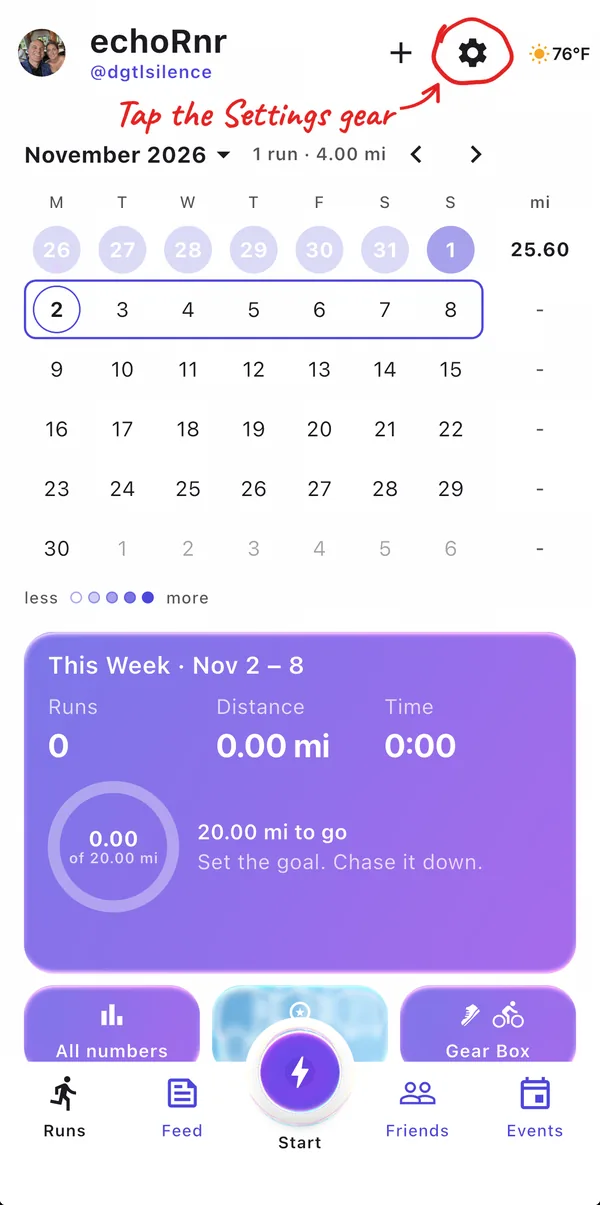
Open SettingsOn the Runs tab, tap the gear at the top right. 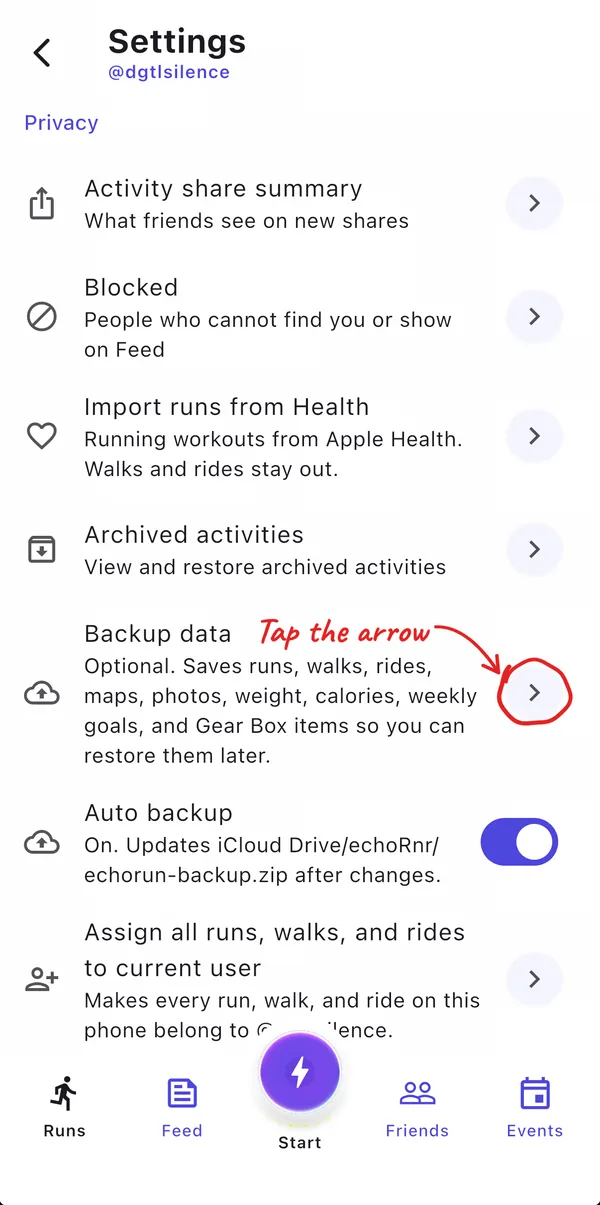
Tap Backup dataScroll to the Privacy section and tap the arrow on Backup data. echoRnr builds your zip — it can take a moment with lots of photos. 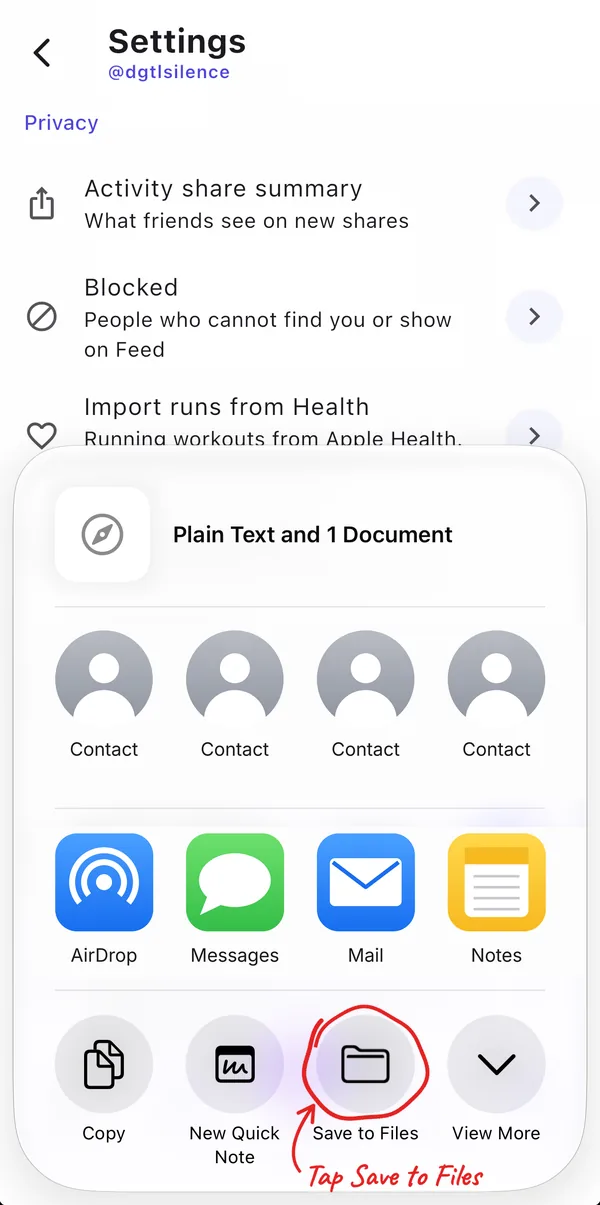
Choose Save to FilesIt’s in the share sheet that opens. 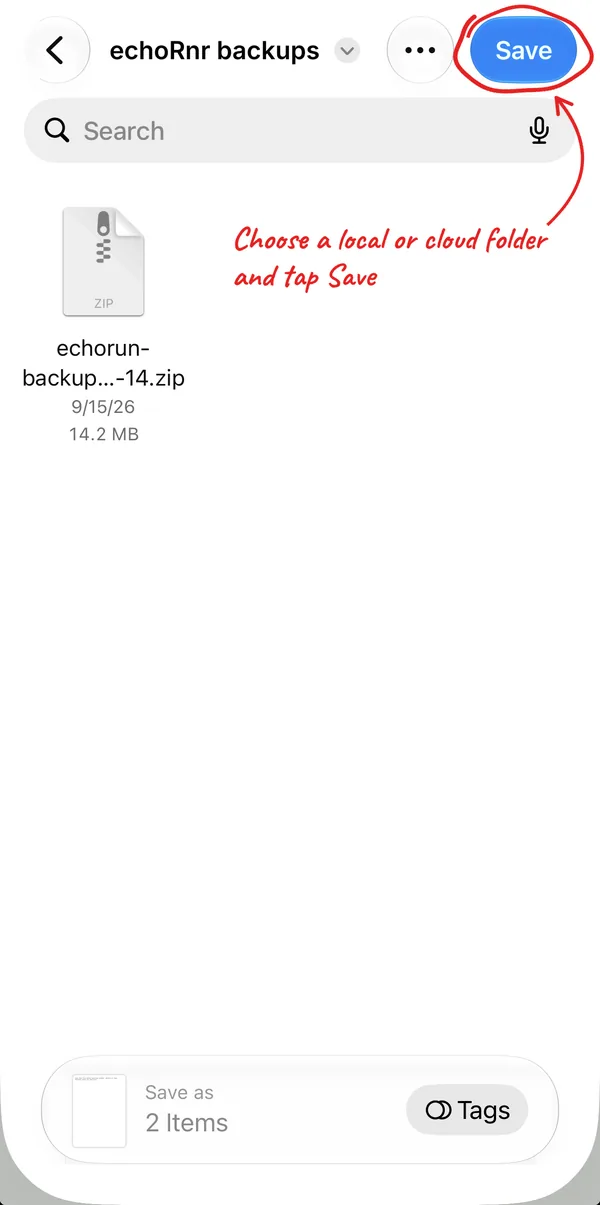
Pick a folder, then tap SaveiCloud Drive is best — it's safe even if you lose your phone. 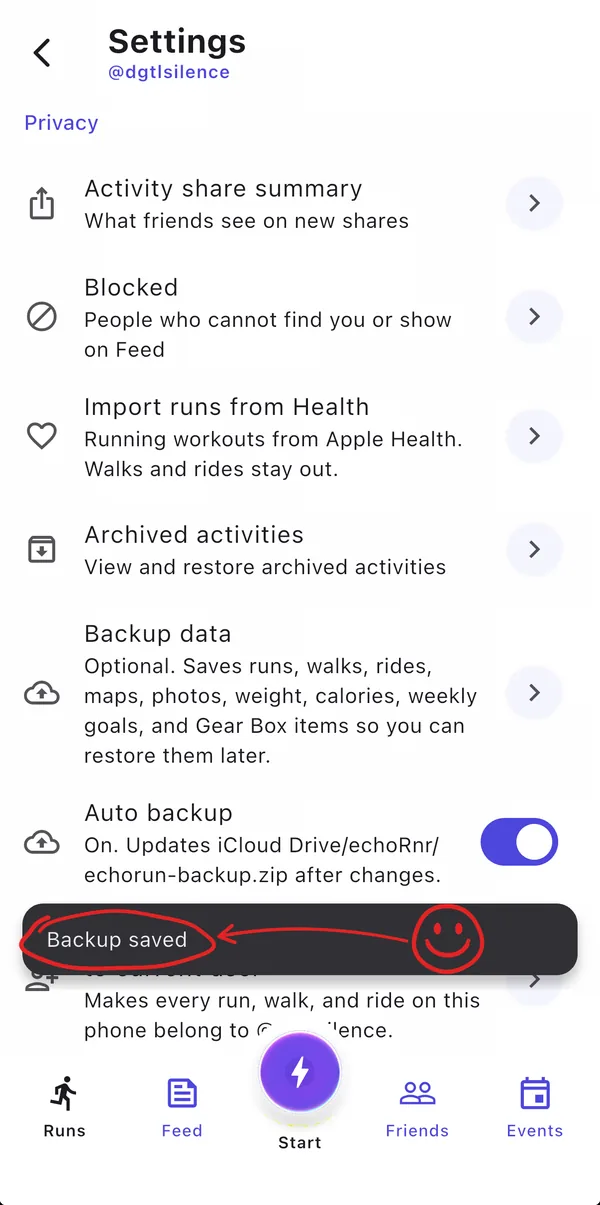
Look for “Backup saved”That means the zip is safely stored. If you close the sheet without saving, nothing is saved.
Short version: Settings → Backup data (in the Privacy section)
What's inside the backup
- All your runs, walks and rides, with maps, splits, heart rate and calories (in a spreadsheet named
EchoRun.xlsx) - Your activity photos
- Your Gear Box — shoes, bike tires and their photos
- Your weekly distance goals
- Your weight, if you've entered one
- Links to runs you've shared, so props reconnect after a restore
Not included: your account, friends, and Feed — those live with your echoRnr account and come back when you sign in.
Tip: Save your backup to iCloud Drive, not just On My iPhone. If the phone is lost, the backup goes with it.
Back up before you delete the app or use Delete all local data. Both remove the activities stored on your phone. A backup is the only way to get them back.
Turn on Auto backup
Auto backup keeps one backup file up to date for you. A few seconds after you save, edit or delete an activity, change Gear Box, or change a weekly goal, echoRnr replaces that file with a fresh copy. It's off until you turn it on.
Swipe to see each step →
Open SettingsOn the Runs tab, tap the gear at the top right. 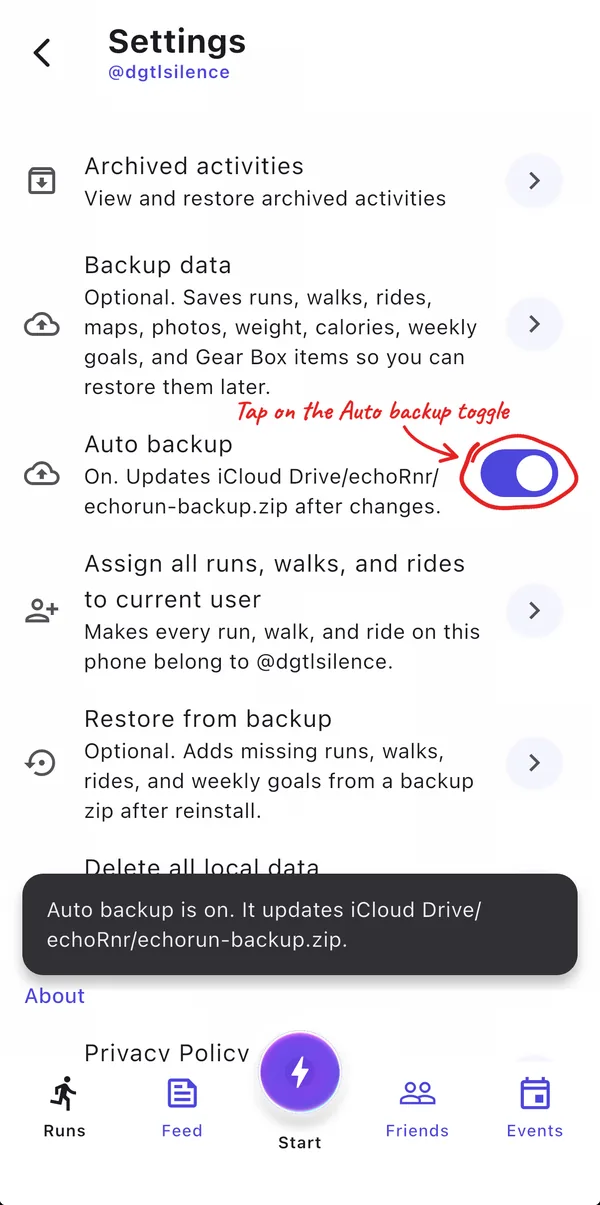
Turn on Auto backupTap the toggle under Backup data. A message confirms where the file is saved.
Where the file goes
- With iCloud Drive on, it saves to
iCloud Drive/echoRnr/echorun-backup.zipautomatically.
If iCloud Drive is off, echoRnr asks for a folder. Don't pick one inside On My iPhone — that folder is deleted along with the app.
- Your activity always saves first — it never waits on the backup.
- If the folder or iCloud Drive goes away, Auto backup tells you it needs to be set up again.
- Turning Auto backup off doesn't delete the file.
- Want a dated copy too? Backup data still makes one any time.
Restore a backup
Restoring loads a backup zip back into echoRnr. It only adds what's missing — runs, walks, rides, photos, weekly goals and Gear Box items. Anything already on your phone is left alone, so restoring twice won't make duplicates.
Swipe to see each step →
Open SettingsOn the Runs tab, tap the gear at the top right. 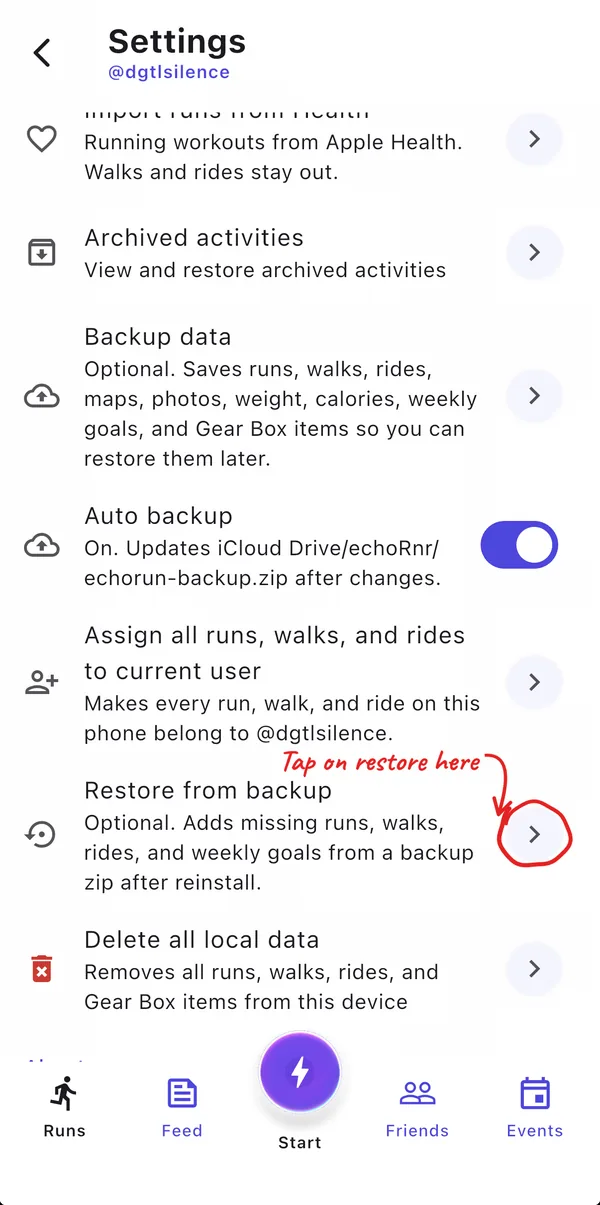
Tap Restore from backupScroll down the Privacy section and tap its arrow. 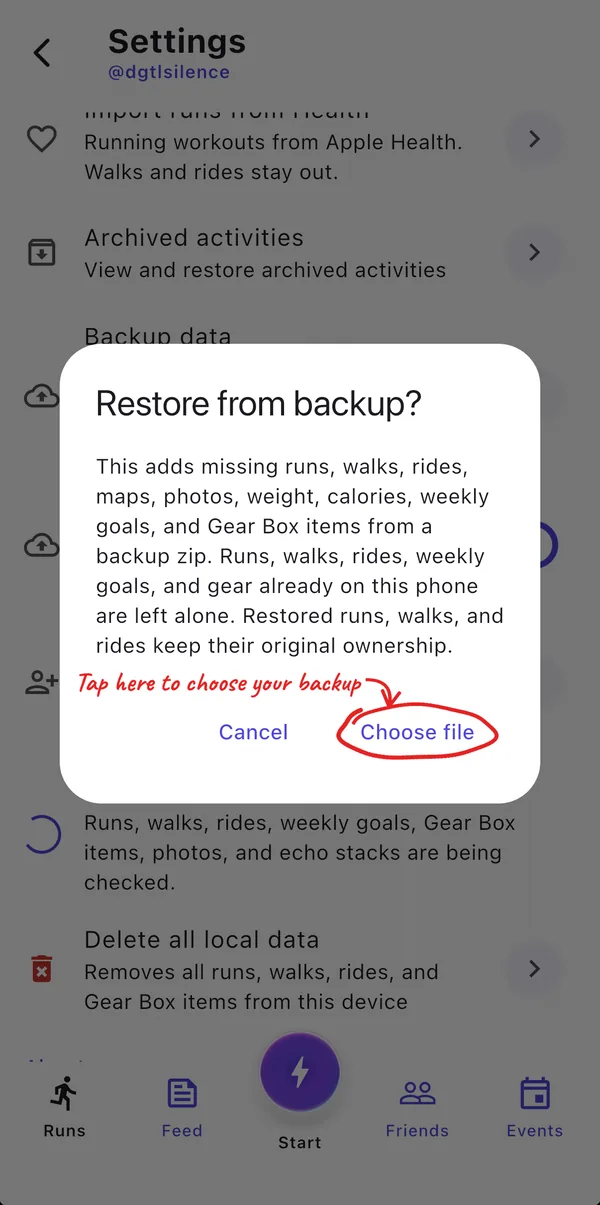
Tap Choose fileThe note explains that restore only adds what’s missing and leaves everything on your phone alone. 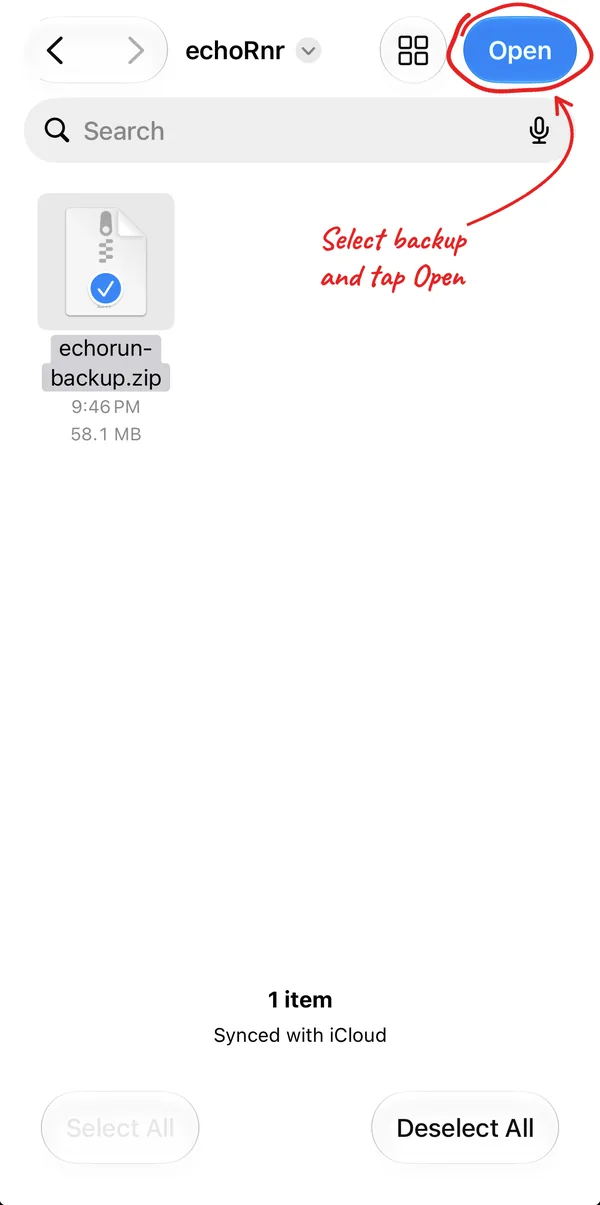
Select your backup, then tap OpenPick a dated zip from Backup data, or echorun-backup.zipfrom Auto backup in iCloud Drive/echoRnr.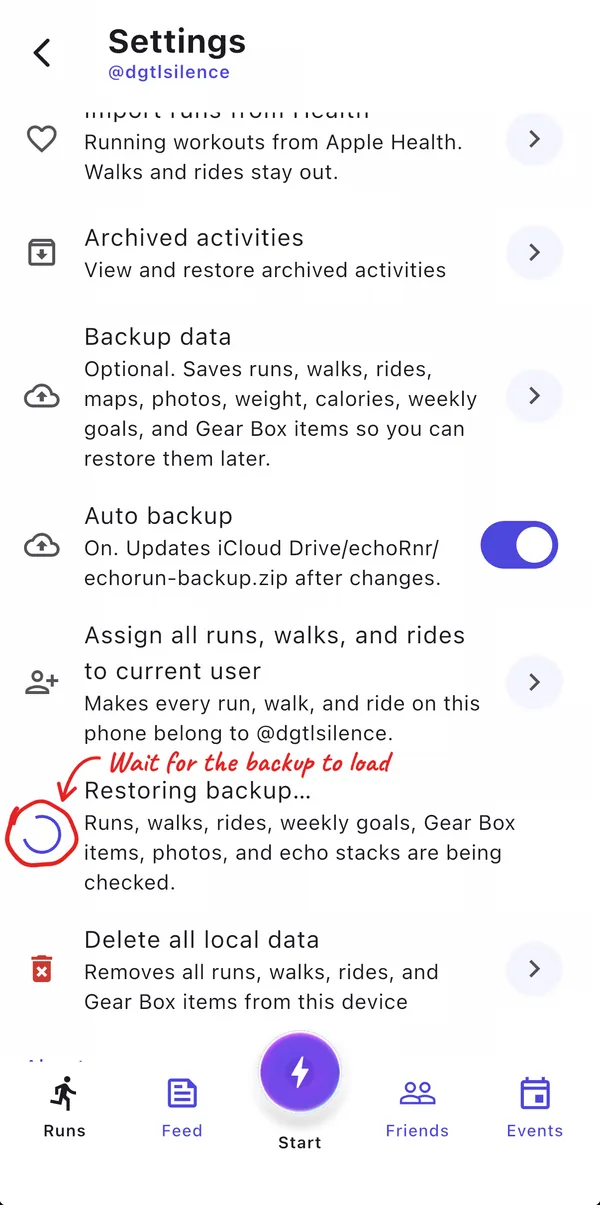
Wait for it to finishKeep echoRnr open while it checks your runs, walks, rides, goals, gear and photos. 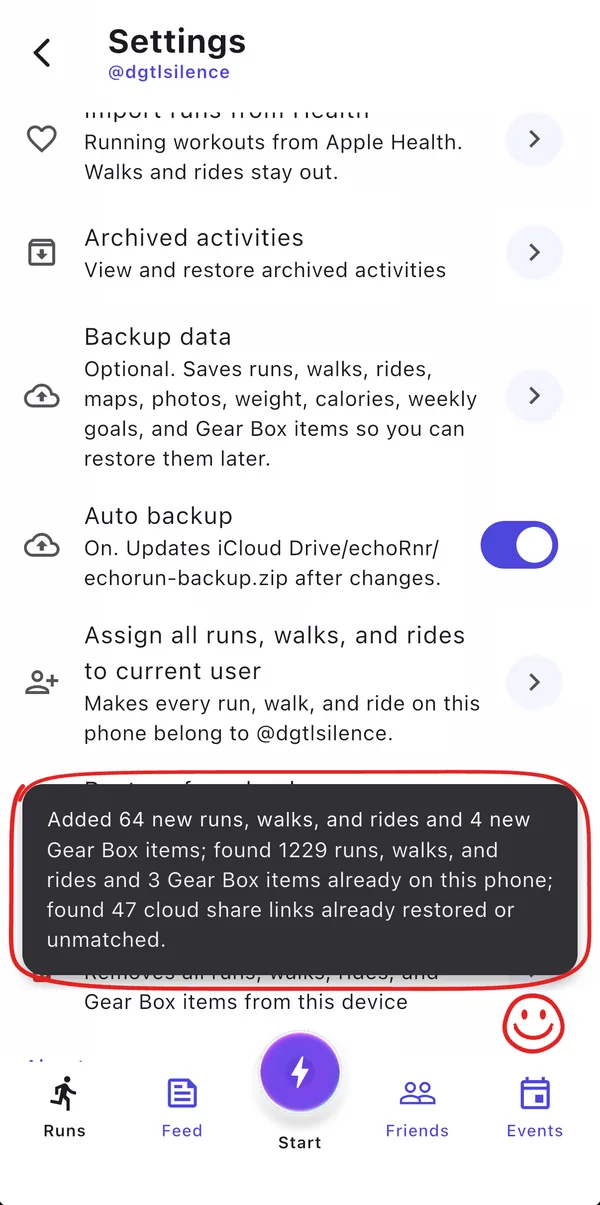
Check the summaryA message counts what was added and what was already on your phone.
Sign in first for the best result. Friends and Feed live with your account, not the backup. Once you're signed in, restored runs reconnect to the shares and props you already had.
Older backups work too. A backup from an earlier version of echoRnr still restores.
Move to a new iPhone
Your activities live on your phone, so moving (or reinstalling) is a quick backup-and-restore.
On your old iPhone
- Make a fresh backup: Settings → Privacy → Backup data (full steps).
- Save it somewhere the new iPhone can reach — iCloud Drive, AirDrop, or email it to yourself.
- Using Auto backup? Your latest file is already in iCloud Drive or your chosen folder.
On your new iPhone
- Install echoRnr and sign in with the same account to bring back your handle, friends and Feed.
- Use Restore from backup and pick your zip (full steps).
- Using Auto backup? Turn it back on and choose the folder again — a new install needs permission again.
- Allow Location and Health access when asked.
Same Apple ID on the new iPhone? Restore from backup can open your Auto backup file straight from iCloud Drive.
Import runs from Health
Bring in past runs that other apps, like Strava, saved to Apple Health.
Swipe to see each step →
Open SettingsOn the Runs tab, tap the gear at the top right. 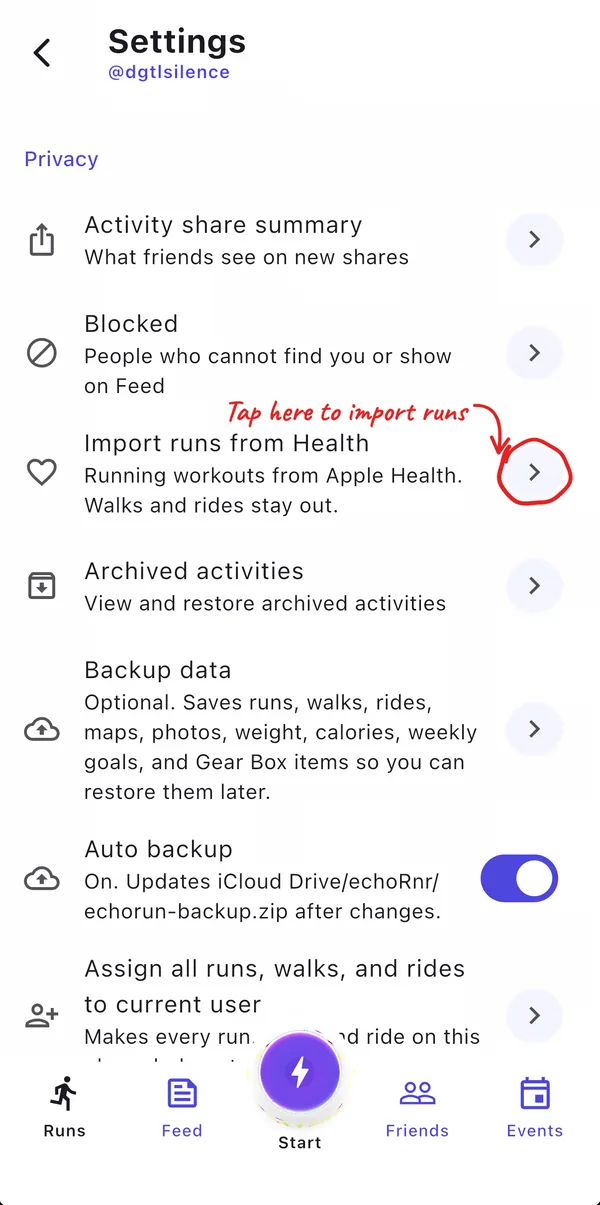
Tap Import runs from HealthIt's in the Privacy section. The first time, your phone asks to allow access to Health. 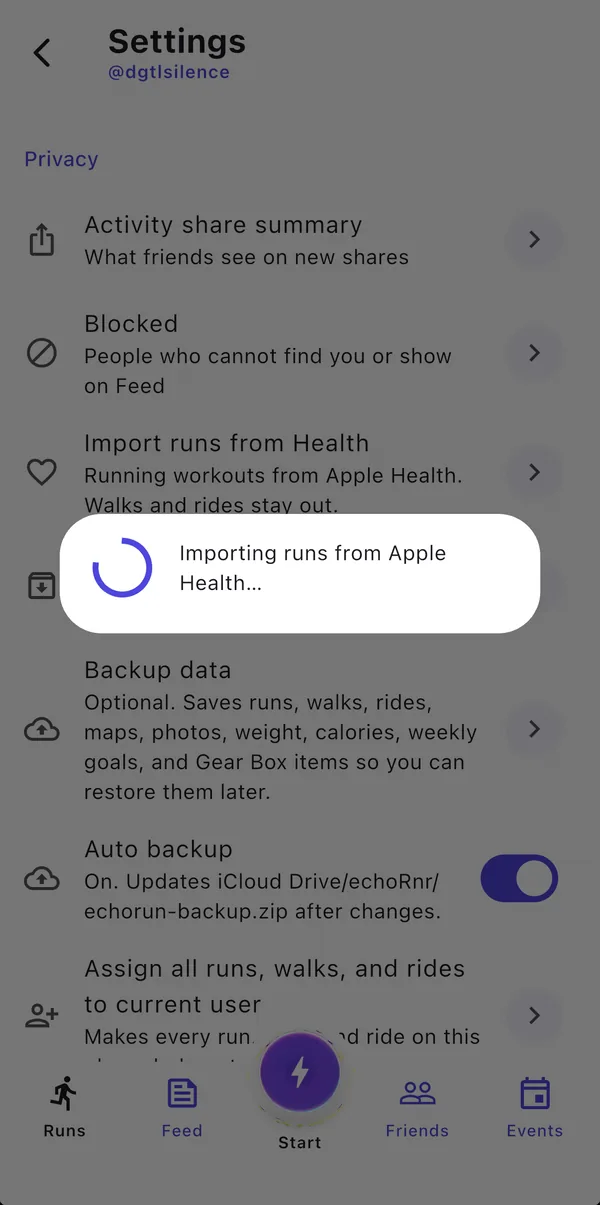
Wait while it importsKeep echoRnr open until it finishes. 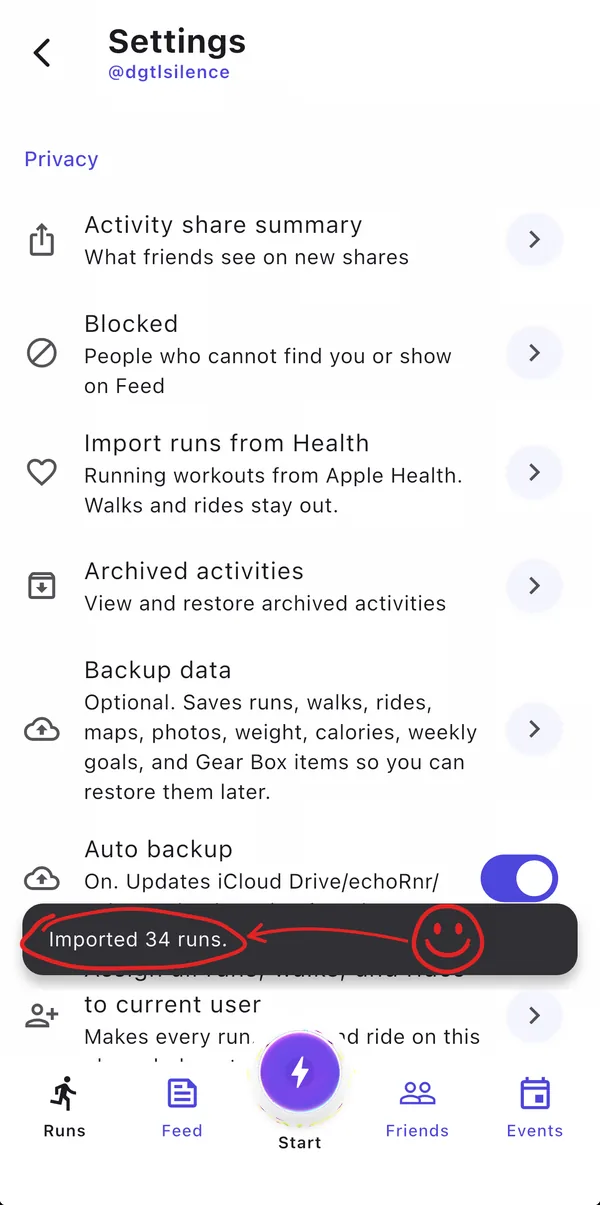
See how many came inA message tells you how many runs were imported.
- Imports running and treadmill workouts only — walks and rides stay out.
- Runs already in echoRnr (or overlapping one) are skipped, so it's safe to import again.
- Sign in first so imported runs are tied to your handle. Signed out, echoRnr asks you to confirm.
Imported runs bring over the summary — time, distance, pace, heart rate and calories — but not a map or splits. Apple Health doesn't reliably pass those along from other apps.
Delete your account
Go to Settings → Delete account. This removes your cloud profile, friends, shares and feedback, then signs you out.
- Runs, walks and rides on your phone stay. To remove them too, use Settings → Privacy → Delete all local data.
- Signing in again later creates a brand-new account.
- Uninstalling the app does not delete your account. Use Delete account first.
- Can't get into the app? Email support@echornr.com and we'll delete it for you.
Still stuck?
Email support@echornr.com — a screenshot of where you're stuck helps us answer faster.